Aufgaben und PrüfungenHomework and exams

Nichts mehr vergessenNever forget again

Aufgaben und Prüfungen hängen am Fach. Wann sie fällig sind, rechnet Heftig aus deinem Stundenplan aus – ein Tipp auf „Nächstes Mal“ genügt.

Homework and exams belong to a subject. Heftig works out the due date from your timetable – one tap on “next time” is enough.

4 Schrittesteps~4 Min.minmit Bildern aus der Appwith pictures from the app

Noch nicht installiert? Alle Wege zu Heftig – Android, iPhone/iPad und im Browser – findest du auf heftig.fooseroo.app. Danach hierher zurückkehren.

Not installed yet? All ways to get Heftig – Android, iPhone/iPad and in the browser – are on heftig.fooseroo.app. Then come back here. Heftig’s interface is in German; labels below are shown as in the app, with a translation.

1

Eine Aufgabe anlegenAdd homework

Im Fach auf +Tap + in the subject
Aufgabe anlegenAdd homework

Öffne das Fach – über Fächer oder eine Stunde im Raster der Woche – und tippe im Reiter Aufgaben auf +.

Gib einen Titel ein, bei Bedarf eine Notiz, und wähle unter Fällig am einen Termin:

  • Heute, Morgen
  • Nächstes Mal – die nächste Stunde in diesem Fach, mit Tag und Uhrzeit aus dem Stundenplan.
  • Dann wieder – die übernächste.
  • Anderes Datum – Kalender; Tage mit diesem Fach sind markiert.

Übernehmen – fertig. Die Aufgabe erscheint auf „Heute“, in der Woche und im Fach.

Open the subject – via Fächer (subjects) or a lesson in the Woche (week) grid – and tap + in the Aufgaben (homework) tab.

Enter a Titel (title), optionally a Notiz (note), and pick a date under Fällig am (due on):

  • Heute (today), Morgen (tomorrow)
  • Nächstes Mal (next time) – the next lesson of this subject, with day and time from your timetable.
  • Dann wieder (the time after) – the one after that.
  • Anderes Datum (other date) – a calendar; days with this subject are marked.

Übernehmen (save) – done. The homework shows up on Today, in the week and in the subject.

Aufgabe angelegt.Homework added.
2

Eine Prüfung eintragenAdd an exam

Prüfung anlegenAdd an exam

Im Fach den Reiter Prüfungen öffnen und auf +. Wähle die Art – Klausur, Klassenarbeit, Test, Mündlich, Referat oder Sonstiges – und trage Thema und Lernstoff ein. Den Termin wählst du wie bei Aufgaben.

Ab dann zählt die Prüfung auf „Heute“ als Countdown herunter. Wer sie mindestens sieben Tage vorher einträgt, bekommt dafür schon Punkte.

Open the Prüfungen (exams) tab in the subject and tap +. Choose the Art (type) – Klausur (exam), Klassenarbeit (class test), Test, Mündlich (oral), Referat (presentation) or Sonstiges (other) – and enter Thema (topic) and Lernstoff (material). Pick the Termin (date) like for homework.

From then on the exam counts down on Today. Entering it at least seven days ahead already earns points.

Prüfung eingetragen.Exam added.
3

Lerntage planenPlan study days

3 Lerntage geplant3 study days planned

Mit LERNTAGE und + legst du fest, an wie vielen Tagen du vorher lernen willst. Heftig verteilt sie vor der Prüfung und zeigt sie als Kreise – auf „Heute“, im Fach und in der Woche. An einem Lerntag steht die Prüfung auf „Heute“ unter DRAN.

Gelernt? Kreis antippen. Jeder geschaffte Lerntag bringt Punkte, und auf Erfolge zählt Heftig mit, wie viele Tage in Folge du drangeblieben bist.

Bei 0 Lerntagen steht dort Kein Lernplan – auch gut.

With LERNTAGE (study days) and + you set on how many days you want to study beforehand. Heftig spreads them before the exam and shows them as circles – on Today, in the subject and in the week. On a study day the exam appears on Today under DRAN (up next).

Studied? Tap the circle. Every study day done earns points, and Erfolge (achievements) counts how many days in a row you kept at it.

With 0 study days it says Kein Lernplan (no study plan) – that’s fine too.

Lernplan verstanden.Study plan understood.
4

Ergebnis, Übersicht und PapierkorbResult, overview and bin

Alle PrüfungenAll exams
  • Ergebnis eintragen: Prüfung antippen und unter Ergebnis die Note oder Punkte eintragen – Freitext.
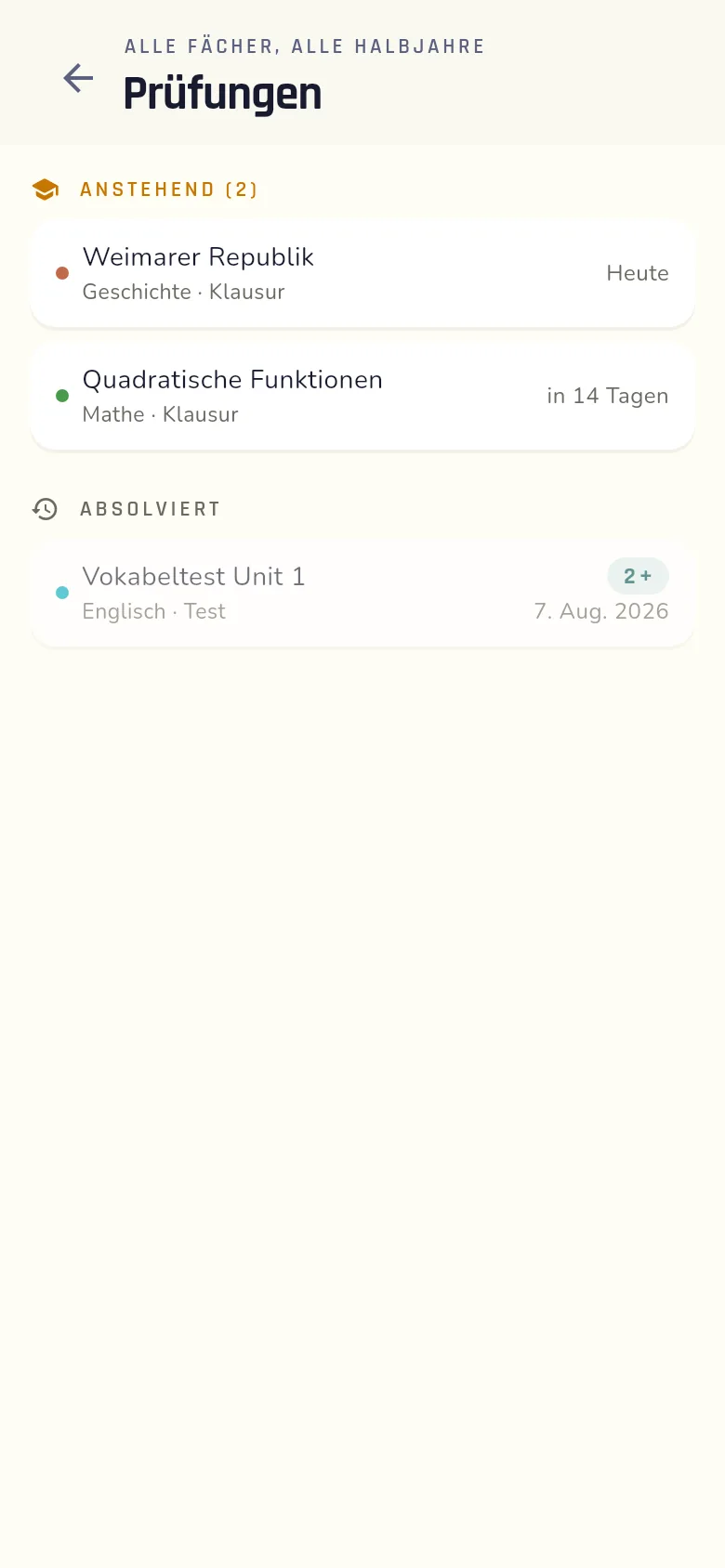
  • Alle Prüfungen: auf Erfolge → Alle Prüfungen mit Ergebnissen. Dort stehen ANSTEHEND und ABSOLVIERT über alle Fächer und Halbjahre.
  • Löschen: im Fach nach links wischen oder im Fenster Aufgabe löschen. Gelöschtes landet im Papierkorb (unter Einstellungen) und lässt sich von dort Wiederherstellen. Direkt danach geht es auch mit Rückgängig oben in der Leiste.
  • Enter the result: tap the exam and type the grade or points under Ergebnis (result) – free text.
  • All exams: on Erfolge (achievements) → Alle Prüfungen mit Ergebnissen (all exams with results). It lists ANSTEHEND (upcoming) and ABSOLVIERT (done) across all subjects and terms.
  • Delete: swipe left in the subject, or Aufgabe löschen (delete homework) in its window. Deleted items go to the Papierkorb (bin) (under settings) and can be restored there with Wiederherstellen (restore). Right after deleting, Rückgängig (undo) in the top bar works too.
Alles im Griff.All under control.
0%