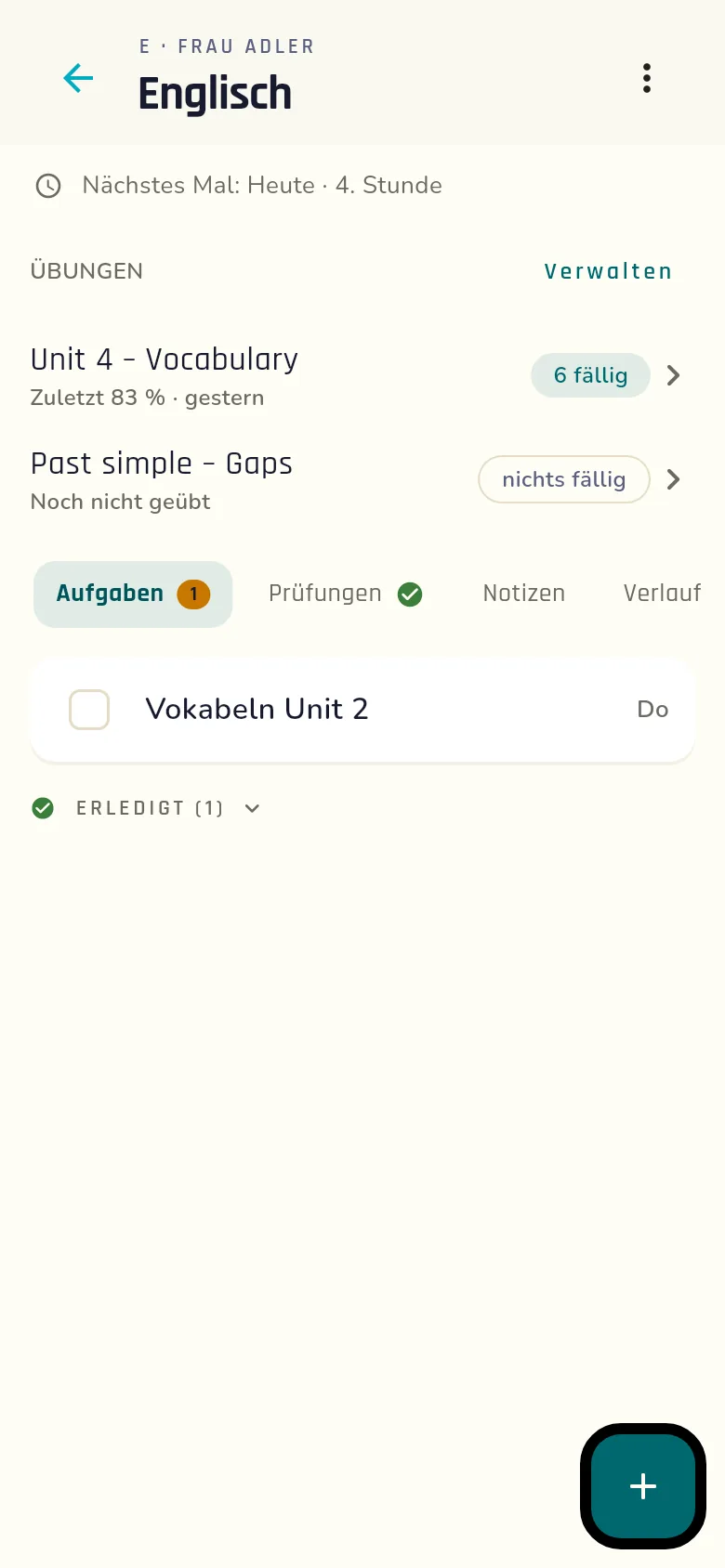
Im Fach tippst du auf ⋮ → Übung aus Blättern. Du kannst die Übung auch gleich einer Aufgabe oder Prüfung zuordnen: Öffne sie zum Bearbeiten und tippe auf Übung aus Blättern anlegen.
Mit Aufnehmen fotografierst du, mit Galerie wählst du vorhandene Bilder – bis zu acht Blätter auf einmal. Danach Weiter: Du siehst alle Blätter noch einmal und kannst einzelne entfernen.
Am Notebook im Browser öffnet Aufnehmen ein Live-Bild deiner Kamera. Dein Browser fragt vorher, ob Heftig die Kamera benutzen darf. Halte das Blatt ruhig davor und tippe Blatt aufnehmen – so oft du willst, bis zu acht – dann Fertig. Das Live-Bild ist wie in einem Spiegel gedreht, damit sich das Blatt leichter ausrichten lässt – Bild gespiegelt schaltet das um; das aufgenommene Bild ist nie gespiegelt, die Schrift bleibt lesbar. Sobald das Fenster zu ist, ist die Kamera wieder aus. Verweigerst du die Kamera, bleibt Galerie.
Unter Was mit deinen Blättern passiert steht genau, was geschieht: Die Fotos gehen erst, wenn du auf Blätter senden und Übung erzeugen tippst, verschlüsselt an einen Heftig-Server, von dort liest die KI Claude von Anthropic die Blätter. Heftig speichert die Blätter nicht – nicht auf dem Server und nicht in der App.
Namen: Stehen auf einem Blatt Namen, werden sie mit gelesen. Schneide sie vorher weg, wenn du magst – für die Übung brauchen sie nicht.
In the subject tap ⋮ → Übung aus Blättern (exercise from worksheets). You can also attach the exercise to a homework or exam straight away: open it for editing and tap Übung aus Blättern anlegen (create exercise from worksheets).
Aufnehmen (take photo) opens the camera, Galerie (gallery) picks existing images – up to eight sheets at once. Then Weiter (next): you see all sheets once more and can remove single ones.
On a notebook in the browser Aufnehmen (take photo) opens a live picture of your camera. Your browser asks first whether Heftig may use the camera. Hold the sheet steady in front of it and tap Blatt aufnehmen (capture sheet) – as often as you like, up to eight – then Fertig (done). The live picture is flipped like a mirror so the sheet is easier to line up – Bild gespiegelt (picture mirrored) switches that off; the captured picture is never mirrored, so the writing stays readable. As soon as the window is closed the camera is off again. If you deny the camera, Galerie (gallery) remains.
Under Was mit deinen Blättern passiert (what happens to your sheets) the app states exactly what happens: only when you tap Blätter senden und Übung erzeugen (send sheets and create exercise) are the photos sent, encrypted, to a Heftig server; from there the AI Claude by Anthropic reads the sheets. Heftig does not store the sheets – neither on the server nor in the app.
Names: if a sheet shows names they are read along. Crop them out first if you like – the exercise doesn’t need them.